
Import and export wallet CSV
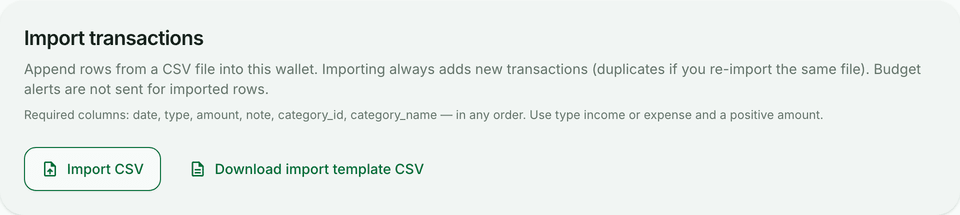
Export transactions from the wallet list, or import a CSV from wallet Settings using the example file.
Updated 2026-10-21 · TH
CSV keeps Budfinix compatible with spreadsheets and other tools.
Steps
- Open a wallet. On the transaction list, choose Export to download the CSV.
- To add rows, open wallet Settings.
- Use Download import template CSV for the expected columns, then Import CSV and choose the file.
- Check the ledger after import for duplicates or miscategorized rows. Import always adds new rows.
Tips
- The example file lives on Settings. Export is a download of existing rows, not the import template.
- Cross-wallet cash-flow exports also live under Reports (Plus+).