
Reports, CSV, and PDF export
Use the Plus Reports hub: Overview, cash flow and module tabs, date presets, a wallet filter, Pro type filter, and CSV or PDF export.
Updated 2026-10-21 · TH
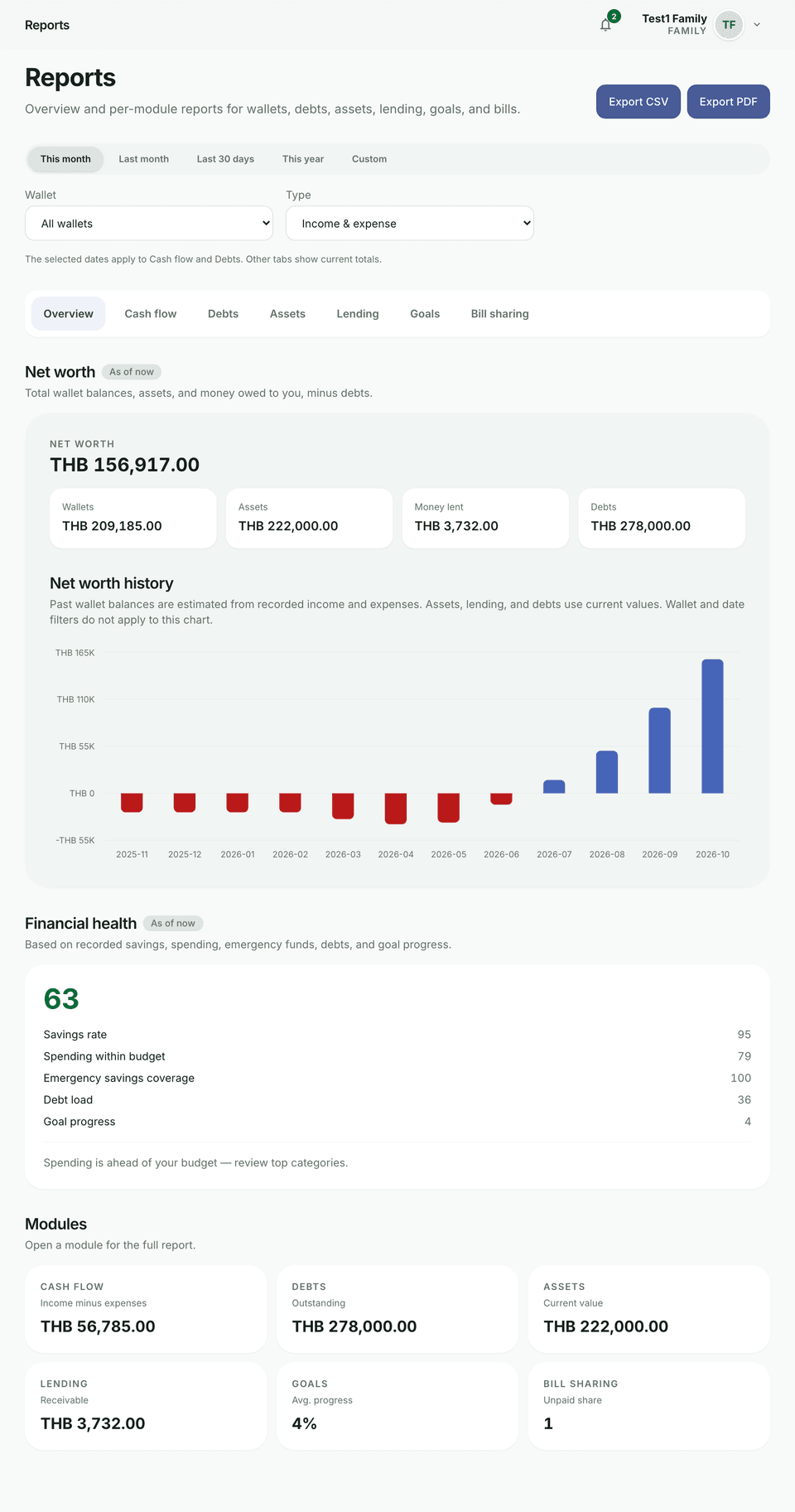
Reports is a multi-section hub on Plus and above. Tabs appear only for modules you have enabled.
Before you start
- Open Reports from the main navigation.
- Free plans see an upgrade prompt to Settings → Billing → Plans.
Overview
- Start on the Overview tab.
- Review net worth when wallets, assets, lending, or debts are on.
- On Pro and above, check the financial health score when available.
- Use the module cards (cash-flow net, debt outstanding, asset value, lending receivable, goal progress, unpaid bills) to jump into a tab.
Cash flow and other tabs
- Open Cash flow (wallets module) for income, expenses, net, month-over-month, and category charts.
- Switch to Debts, Assets, Lending, Goals, or Bill sharing as needed — each shows a compact rollup for that module.
- From Debts in Reports, use Full debt reports for the dedicated Debts analytics page.
Period and filters
- Choose a preset: This month, Last month, Last 30 days, This year, or Custom.
- The selected range applies to Cash flow and Debts; other tabs show current snapshots.
- When the wallets module is on, filter by Wallet: All wallets or one wallet.
- On Pro and above, also filter by Type: Income & expense, Income only, or Expense only. Pro remembers the wallet and type choices in this browser.
Export
- When the wallets module is on, Export CSV and Export PDF sit in the page header, not only on the Cash flow tab.
- Open the download and compare totals with the on-screen summary if something looks off.
Tips
- Module tabs hide when that product area is turned off for your account.
- For repayment strategy detail, prefer Debts → Payoff plan and Reports, not only the compact Debts card here.